
Shot History and See Inputs
🕘 How do I go back to an earlier version of a shot?
Every time you generate, edit or upload a shot, the new version is saved in Shot History, on the right of the Edit Video panel.
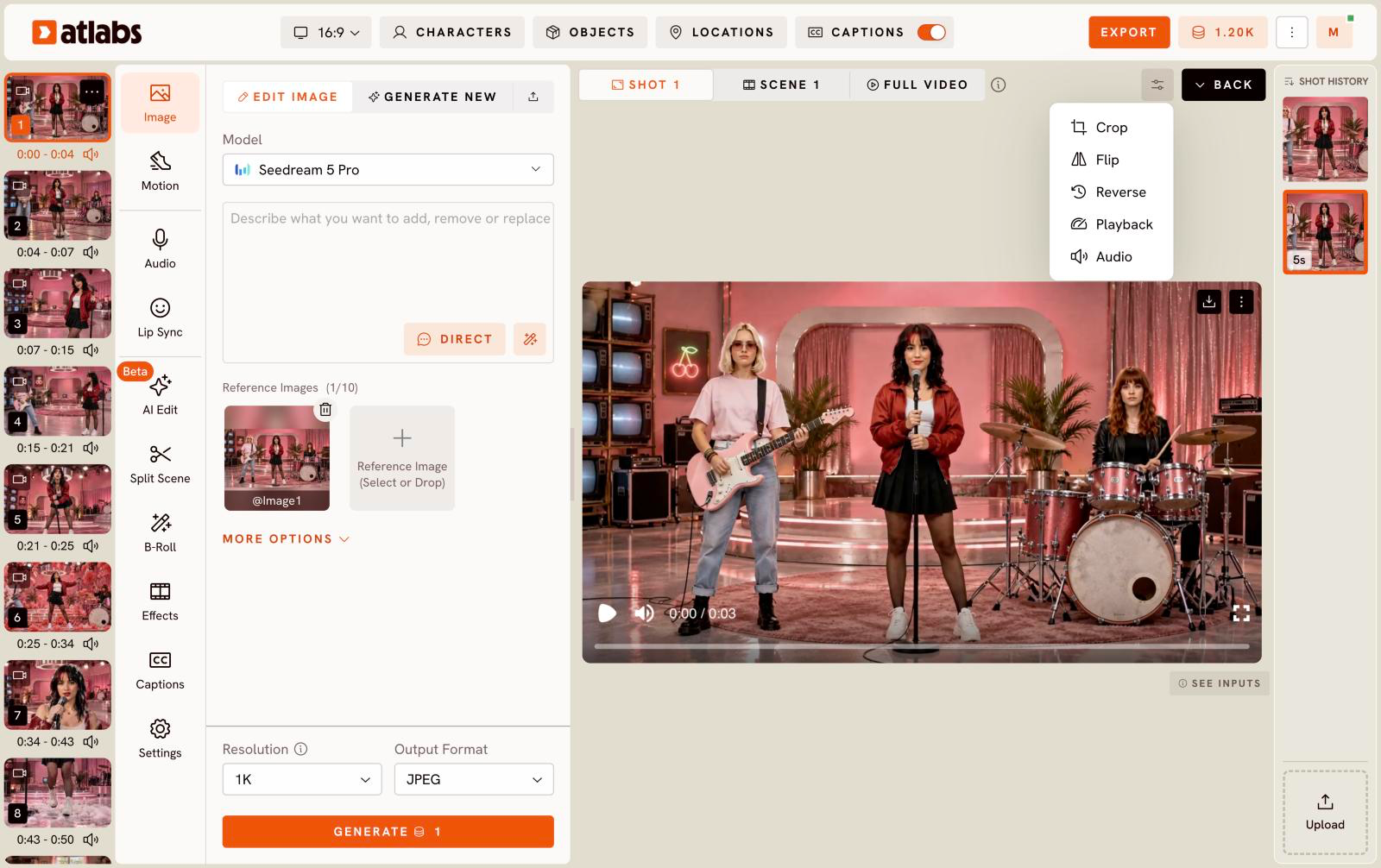
- Use an earlier version: click it. Nothing is regenerated and no credits are used.
- Change the order: use the sort button next to Shot History.
- Add your own file: click Upload at the bottom of Shot History.
See how a shot was made
Choose Shot above the preview and click See Inputs under it. You'll see the action (for example Edit Image), the prompt, the model, aspect ratio, resolution, format, credits used and when it was made. Click Open Generation to open it.
For the inputs of the whole story, open the ⋮ menu at the top right and click See Inputs.
Updated on: 11/19/2026
Thank you!