
How do I show the whole scene after changing the aspect ratio? (Contain vs Cover)
When you change the aspect ratio of a story, for example, from 16:9 to 9:16, each scene is set to Cover by default. Cover fills the whole frame, so some of the scene's edges get cropped. If you want to keep the entire scene in view, switch it to Contain.
Show the whole scene
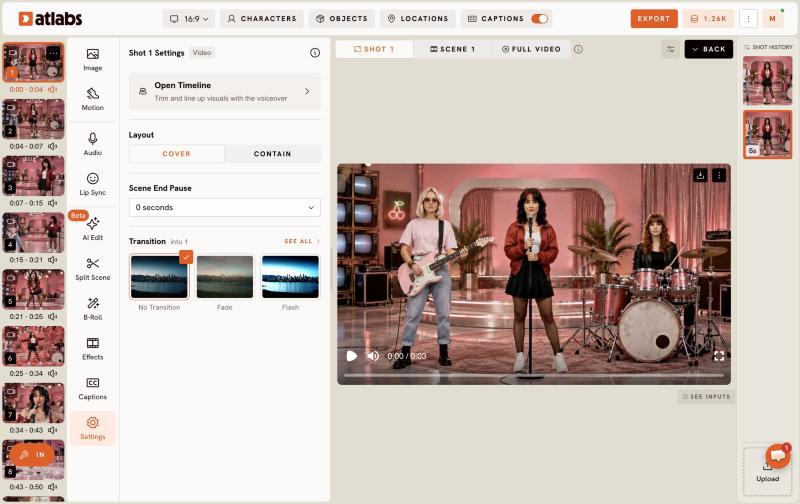
- Open your story and click Edit Video.
- Pick the scene from the scene list on the left.
- Click the Settings tab.
- Under Layout, choose Contain.
The full scene stays visible, with space around it.
Contain or Cover: which one to use
- Cover: fills the whole frame, but crops some of the edges. Use it when a full frame matters more than every detail.
- Contain: keeps the entire scene in view, with space around it. Use it when nothing in the scene should be cut off.
Want the extra space filled instead?
Contain leaves space around the scene. If you'd rather fill that space, use Reframe. It extends your image or video to the new size with AI.
FAQ
I changed the aspect ratio and part of my scene is cut off. How do I fix it?
Open the scene, go to Settings, and under Layout, choose Contain. The full scene stays visible, with space around it.
Why is my scene cropped after changing the aspect ratio?
Scenes are set to Cover by default. Cover fills the frame and crops the edges that don't fit.
Do I need Reframe to show the whole scene?
No. Contain shows the whole scene with space around it. Use Reframe only if you want that space filled.
Still need help? Write to support@atlabs.ai.
Updated on: 11/17/2026
Thank you!