
Effects tab: color grading and visual effects
🎨 How do I add color grading and effects?
The Effects tab adds a look to a scene: a color grade, a visual effect, or both.
- Open your story, click Edit Video, pick the scene and click Effects.
- Choose Color Grading or Effects at the top.
- To use the same look across the video, tick Update for all scenes first.
- Pick a preset. The preview updates right away.
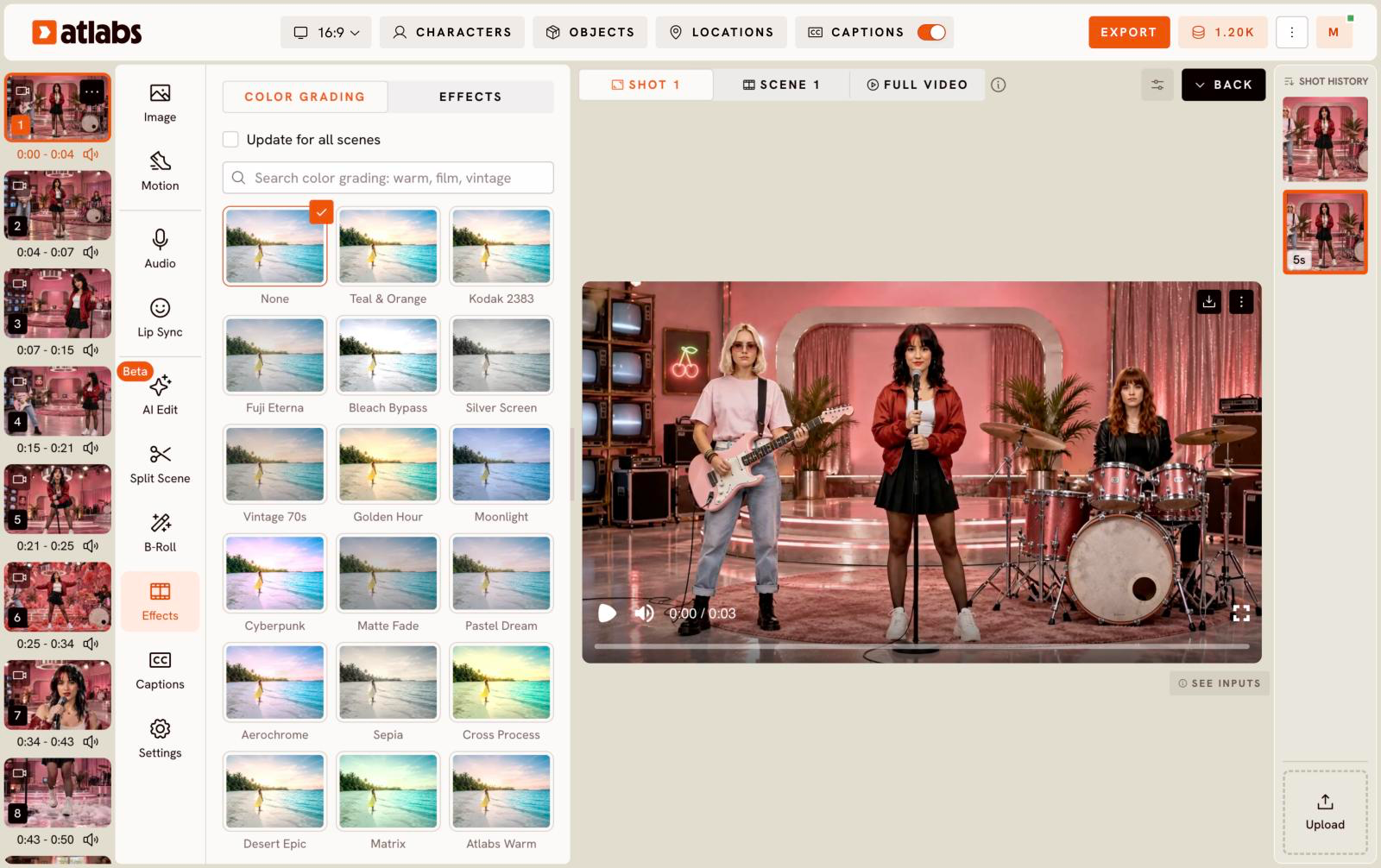
Color Grading
Presets include Teal & Orange, Kodak 2383, Fuji Eterna, Bleach Bypass, Silver Screen, Vintage 70s, Golden Hour, Moonlight, Cyberpunk, Matte Fade, Pastel Dream, Aerochrome, Sepia, Cross Process, Desert Epic, Matrix and Atlabs Warm. Use the search box to find one, for example "warm", "film" or "vintage".
Effects
Effects are grouped into Film, Retro, Glitch, Blur & Focus, Light, Distort, Stylize and Overlays. Examples: Halation, Film Burn, Gate Weave, VHS, CRT, Halftone, 1-Bit Dither, 8-Bit, Polaroid and Glitch.
To remove a look, pick None.
Updated on: 11/18/2026
Thank you!